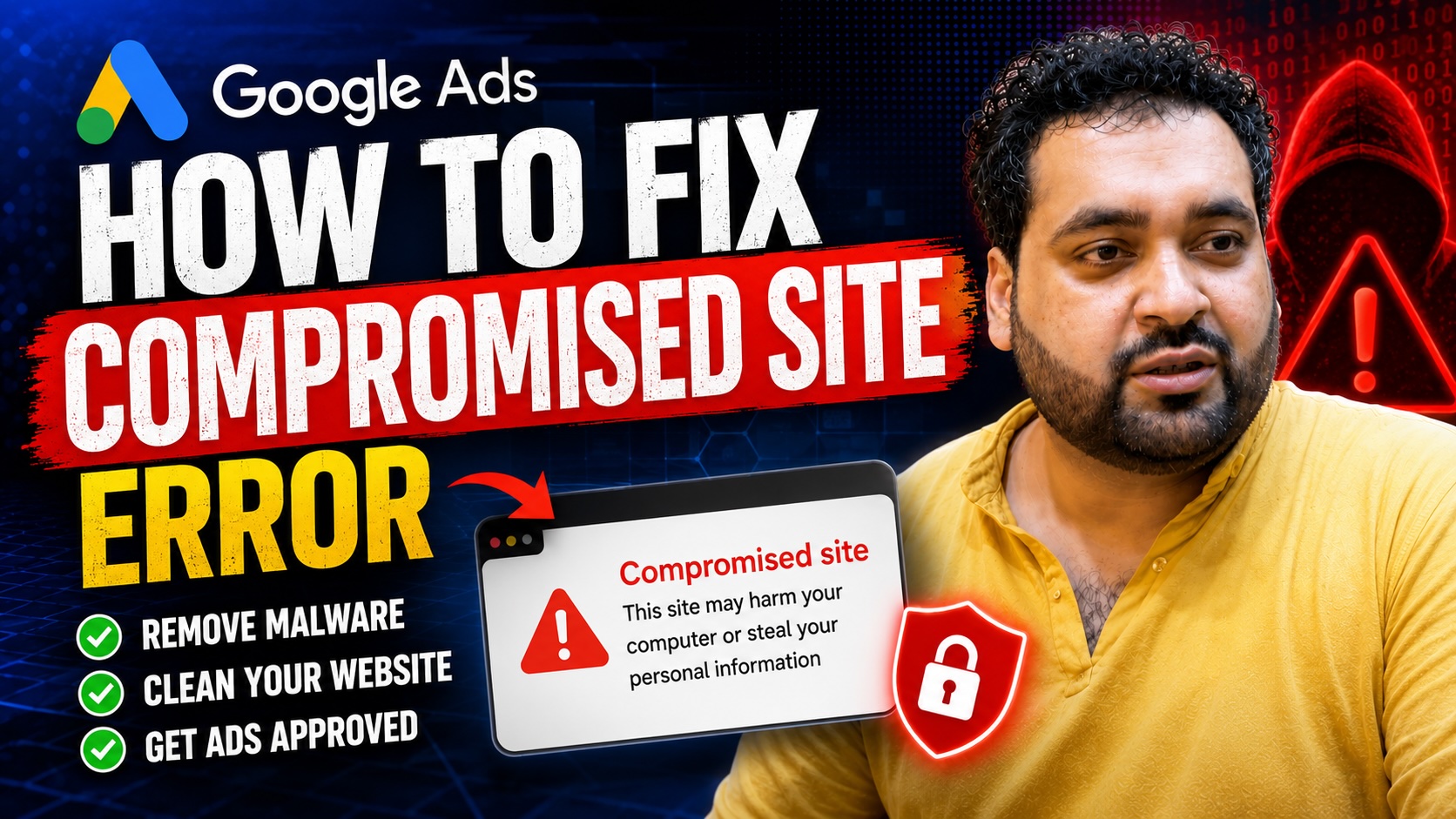
Google Ads Disapproved for Compromised Site? Here Is How to Fix It
Have your Google Ads suddenly been disapproved because of a Compromised Site policy violation?
First of all, do not panic.
I understand that it can be worrying when your campaigns stop running without any warning—especially when your website appears completely normal. However, this issue can happen to almost any website, either knowingly or unknowingly.
Google may have detected unsafe content, malicious code, suspicious redirects, injected scripts or another security issue connected to your website.
The important thing is to remain patient, investigate the website properly and avoid submitting repeated appeals before correcting the underlying problem.
In this guide, I will explain what the compromised-site policy means, why it happens and what you should do to restore your ads.
What Does “Compromised Site” Mean in Google Ads?
A compromised site is generally a website whose code or content has been modified by an unauthorized third party.
The website owner may not even know that this has happened.
For example, a hacker may inject malicious JavaScript, create hidden pages, add redirects, upload infected files or use the website for spam. Your main pages may still look completely normal to you, while harmful code operates in the background or appears only to specific users or devices.
Google does not allow ads to send users to unsafe destinations. Therefore, when its systems detect a possible security threat, the affected ads or assets may be disapproved.
Google’s current policy guidance says that when a domain is blocked through Safe Browsing, the website owner should remove the unsafe content and request a security review through Google Search Console. After the site is successfully cleared, its ads may become eligible to serve again.
Why Did My Ads Suddenly Get Disapproved?
A compromised-site problem can appear without you knowingly making a harmful change.
Here are some of the most common causes.
1. A Vulnerable WordPress Plugin
Outdated, abandoned or pirated plugins can contain security vulnerabilities.
A plugin may also have been downloaded from an unofficial source and contain hidden malicious code. Even a legitimate plugin can become risky when it is not regularly updated.
Check whether you recently:
- Installed a new plugin
- Updated an existing plugin
- Downloaded a plugin from an unofficial website
- Left an unused plugin active
- Ignored important security updates
Deactivate and remove any suspicious or unnecessary plugins.
2. An Infected or Pirated Theme
A nulled or pirated WordPress theme may contain backdoors, hidden links or injected scripts.
You should review any theme that was recently installed or updated. Even an inactive theme should be removed if you no longer use it.
Try to use themes only from reputable developers and official marketplaces.
3. Website Access Was Shared
Think about whether you recently shared access with a developer, freelancer, agency employee or another third party.
I am not saying that the other person deliberately did anything wrong.
Their computer could have been infected, or their login details might have been exposed. An infected computer can sometimes upload harmful files without the user realizing it.
Review all WordPress users, hosting accounts, FTP accounts, database users and administrator logins. Remove any account that is no longer required.
4. Your Website Was Hacked
A hacker may have added:
- Hidden JavaScript
- Malicious iframes
- Spam pages
- Phishing forms
- Unwanted downloads
- Conditional redirects
- Unknown administrator accounts
- Modified theme files
- Suspicious cron jobs
- Malicious database entries
Some infections activate only for mobile visitors, visitors arriving from advertisements or users from a particular location. This is why checking the homepage manually is not enough.
5. Your Hosting Account Has a Security Problem
The issue may not be limited to your visible website.
Another website inside the same hosting account could be infected. A hacked email script or compromised server file could also create problems.
Contact your hosting provider and ask it to check:
- Malware and infected files
- Suspicious file modifications
- Unknown FTP activity
- Server-level redirects
- Unusual CPU or bandwidth usage
- Unauthorized email activity
- Spam being sent from your domain
- Other infected websites in the same account
Your hosting provider may have security logs that are not available inside WordPress.
6. Suspicious Emails Are Being Sent
In one case, someone was using a website’s hosting environment to send unauthorized emails.
The website owner did not initially know about it. The activity was eventually identified with the help of the hosting company.
Ask your host whether there has been an unusual increase in outgoing email activity. Also check contact-form plugins, SMTP settings, newsletter tools and unfamiliar email accounts.
7. External Scripts or Third-Party Tools Are Unsafe
A website can be affected by scripts loaded from an external domain.
Review your:
- Live-chat widgets
- Tracking scripts
- Pop-up tools
- Analytics integrations
- Advertising pixels
- Payment widgets
- CDN scripts
- Embedded forms
- WordPress tag-management plugins
A compromised third-party script can affect your site even when your own server files appear clean.
How to Fix a Google Ads Compromised Site Disapproval
Let us now discuss the proper recovery process.
Step 1: Check the Exact Policy Issue
Open your Google Ads account and examine the disapproval details.
Identify:
- Which ads are affected
- Which landing-page URLs are affected
- Whether assets or sitelinks are also disapproved
- Whether the message mentions “Compromised Site,” “Malicious Software,” or both
- Whether more than one domain or subdomain is involved
Do not assume that only the main homepage is affected. The problem may come from a specific landing page, tracking template, redirect or subdomain.
Step 2: Check Google Search Console
Open the Security Issues section of Google Search Console.
Google Search Console can report signs that a site has been hacked or is exposing visitors to malware, phishing or unwanted software.
Also review:
- Manual Actions
- Page indexing reports
- Unknown indexed pages
- Strange search queries
- Unexpected URL parameters
- Sudden increases in indexed pages
Thousands of unfamiliar pages or foreign-language spam URLs can be a sign of a hacked website.
Step 3: Run a Complete Malware Scan
Do not rely on one basic security plugin alone.
Perform a complete scan covering:
- Website files
- WordPress core files
- Themes
- Plugins
- Upload directories
- Database entries
- JavaScript files
.htaccessfiles- Server configuration
- Scheduled tasks
- External scripts
For a serious infection, consider asking an experienced website-security professional to perform a manual review.
A normal web developer may be able to build pages, but malware investigation requires a different set of skills.
Step 4: Review Recently Changed Files
Check the dates when files were created or modified.
Pay particular attention to files changed around the time your ads were disapproved.
Look for:
- Unfamiliar PHP files
- Randomly named folders
- Modified theme headers or footers
- Code that appears encoded or intentionally hidden
- Unknown JavaScript references
- Unexpected redirects
- Files inside the uploads directory that should not be executable
Compare WordPress core files, themes and plugins against clean original copies.
Step 5: Remove Suspicious Plugins and Themes
Remove anything that is:
- Pirated or nulled
- No longer supported
- Downloaded from an unknown source
- Unused
- Outdated
- Recently installed before the issue began
Do not simply deactivate a malicious plugin. Delete its files and check whether it created additional users, database records or scheduled tasks.
Step 6: Change All Passwords
After cleaning the website, change passwords for:
- WordPress administrators
- Hosting control panel
- FTP or SFTP
- Database users
- Domain registrar
- Cloudflare or CDN
- Business email accounts
- Google Search Console
- Google Ads
- Google Tag Manager
Use strong, unique passwords and enable two-step verification wherever possible.
Changing passwords before removing the infection may not be enough, because malicious code could capture the new credentials.
Step 7: Check SSL and HTTPS
Make sure that your SSL certificate is active and valid.
Every version of your domain should consistently redirect to the preferred HTTPS version. Check for insecure resources, broken redirects and scripts loading through HTTP.
An SSL certificate alone does not prove that a website is malware-free, but a correct HTTPS setup is still an important part of destination security and user trust.
Step 8: Contact Your Hosting Provider
Ask your host for a server-level security review.
Specifically request information about:
- Malware detections
- Suspicious login attempts
- Modified files
- Outgoing spam
- Unusual server processes
- Other infected domains in the account
- Available clean backups
Restoring a backup can help, but make sure the backup was created before the infection. Otherwise, you may restore the malware as well.
Step 9: Secure the Website Against Reinfection
After removing the harmful code:
- Update WordPress core
- Update plugins and themes
- Delete inactive extensions
- Restrict administrator access
- Enable two-factor authentication
- Use a web application firewall
- Disable unnecessary file editing
- Review user permissions
- Maintain regular backups
- Monitor file changes
- Keep server software updated
Fixing the current infection without closing the original security vulnerability can result in the website being hacked again.
Step 10: Request a Security Review
When Google Search Console shows a security issue, resolve every reported problem and request a review from Search Console.
Explain what happened, what you removed and how you secured the site against reinfection.
Do not request the review until the website has been properly cleaned.
Step 11: Appeal the Google Ads Decision
After the website is secure, return to Google Ads and appeal the disapproval.
Google allows advertisers to appeal a policy decision from the affected ads. Depending on the situation, you can select either Made changes to comply with policy or Dispute decision.
Choose Made changes to comply with policy when you identified and corrected a website problem.
Choose Dispute decision only when you have carefully checked the site and genuinely believe the disapproval is incorrect.
Keep your appeal factual. Mention:
- The website was fully scanned
- Infected or suspicious files were removed
- Plugins, themes and WordPress were updated
- Passwords were changed
- Hosting logs were reviewed
- Security measures were implemented
- Search Console issues were resolved, where applicable
Avoid emotional statements or submitting the same appeal repeatedly.
What Should You Do If the Appeal Is Rejected?
Do not immediately send another identical appeal.
A rejected review usually means that Google is still detecting a problem or that the original issue was not fully corrected.
Recheck:
- All final URLs
- Mobile and desktop versions
- Redirect chains
- Tracking templates
- Sitelinks
- Subdomains
- External scripts
- Tag Manager containers
- Old landing pages
- Cached or CDN content
- Downloadable files
- Other websites in the hosting account
You can also contact Google Ads support and request more information about the affected URLs.
However, Google support may not provide the complete technical fix. You may still need a malware-removal professional, hosting specialist or Google Ads policy expert to identify the root cause.
Common Mistakes to Avoid
Submitting an Appeal Before Cleaning the Website
This wastes an appeal and does not solve the underlying security problem.
Assuming the Website Is Safe Because It Looks Normal
Malicious code can be invisible to normal visitors or activate only under specific conditions.
Installing More Random Security Plugins
Adding multiple security plugins without understanding the infection can create conflicts and does not guarantee a proper cleanup.
Restoring an Infected Backup
A backup is useful only when it was created before the website was compromised.
Creating New Ads to Bypass the Disapproval
New ads using the same affected destination may also be disapproved. Focus on fixing the website rather than trying to work around the policy.
Ignoring External Scripts
Your WordPress installation might be clean while an external chat widget, script or tracking tool is causing the security warning.
Frequently Asked Questions
Does a Compromised Site Disapproval Mean My Google Ads Account Is Suspended?
Not necessarily.
A disapproval normally prevents the affected ads or destinations from serving. However, ignoring serious or repeated policy problems could create greater risk for the account.
Can a WordPress Plugin Cause a Compromised Site Warning?
Yes.
A vulnerable, outdated or infected plugin can allow attackers to upload files, inject scripts, create users or redirect visitors.
Can My Website Be Compromised Without Me Knowing?
Yes.
Many website infections are designed to remain hidden. The site may look normal when you visit it directly but behave differently for Google’s systems, mobile visitors or paid-ad traffic.
Should I Appeal Immediately?
No.
First scan and clean the website, identify the root cause and secure it against reinfection. Submit the appeal only after completing those steps.
How Long Does Google’s Review Take?
Review times vary depending on the policy, case complexity and Google’s review workload. Google controls the final approval decision and timeline.
Can AARSWEBS Guarantee Approval?
No professional or agency can control Google’s final decision.
AARSWEBS can investigate the account, website and policy issue, recommend corrections, assist with compliance and prepare a professional appeal. Final approval remains entirely with Google.
Need Help Fixing a Compromised Site Disapproval?
If your Google Ads remain disapproved after you have scanned the website and submitted an appeal, the problem may require a deeper technical and policy review.
At AARSWEBS, we can help review:
- Your Google Ads policy notification
- Affected ads and landing pages
- WordPress plugins and themes
- Website redirects and external scripts
- Security and trust issues
- Previous appeal attempts
- Google Search Console warnings
- Landing-page compliance
- The information required for your next review request
Visit AARSWEBS.COM and select our Google Ads suspension and disapproval service.
Please remember that AARSWEBS is an independent Google Partner agency. We do not work for Google and cannot guarantee approval, reinstatement or a specific review time. Google makes the final decision.
Final Thoughts
A compromised-site disapproval can be stressful, but it is often fixable.
Remain patient and focus on the root cause.
Start by checking recent plugins, themes and access changes. Run a complete malware scan, contact your hosting company, review Google Search Console and secure every account connected to your website.
Once the website has been fully cleaned, submit a proper review request.
Do not keep appealing without making changes. A careful technical investigation is far more effective than guessing.
I hope this guide helped you understand why your ads were disapproved and what you should do next.