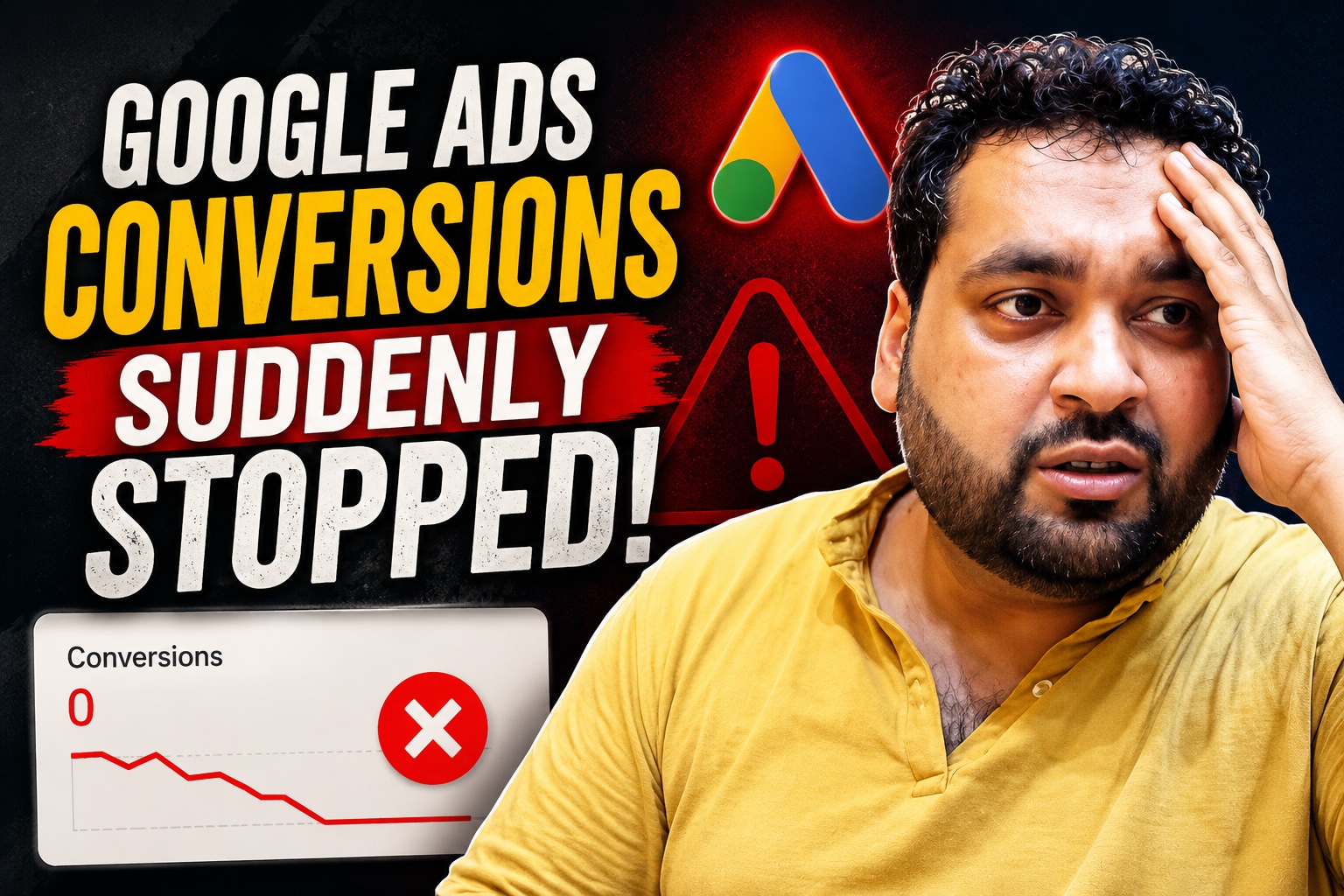
Google Ads Conversions Suddenly Stopped Showing? Complete Troubleshooting Guide
Are your Google Ads conversions not showing, even though your website is still receiving orders or leads?
Perhaps everything was working correctly for several months.
Then, without any intentional website, tracking-code, conversion-action or campaign-setting changes, the conversions suddenly disappeared from Google Ads.
You may have already confirmed that:
- The Google Ads tag is firing in Tag Assistant.
- Customers are still completing payments.
- Google Click Identifiers, or GCLIDs, are being captured.
- Enhanced conversion data is being sent.
- Offline conversions were uploaded using the same GCLIDs.
- There are no obvious upload errors.
- The account remains active.
- Campaigns are still receiving traffic.
- There are no visible billing or policy issues.
This can be a frustrating problem because the tracking setup may appear technically correct.
However, a firing tag does not automatically prove that Google Ads can count and attribute the conversion.
You must investigate the entire measurement process, from the original advertisement interaction to the conversion action, account settings, attribution rules and final reporting column.
This guide explains what to check.
First Understand the Difference Between Firing and Attribution
Tag Assistant can confirm that a conversion event fires when a particular action occurs.
That is useful, but it does not answer every question.
For Google Ads to report the conversion, the system must also be able to connect the event with an eligible Google Ads interaction according to the conversion action’s settings and available identifiers.
For example, a test purchase may trigger the conversion tag but still not appear as a Google Ads conversion when:
- The tester did not arrive through an eligible advertisement.
- The GCLID was lost before checkout.
- The purchase occurred outside the conversion window.
- Consent settings prevented the expected data from being stored or transmitted.
- The wrong conversion ID or label was used.
- The event was sent to a different Google Ads account.
- The conversion action was changed to Secondary.
- The campaign is using a different goal.
- The conversion appears in All conversions but not Conversions.
- The transaction ID was already processed.
- The offline upload was rejected or partially accepted.
- Reporting has not finished processing.
Therefore, do not rebuild everything simply because the conversion is missing from one report.
Start with the account diagnostics.
1. Check the Conversion Action Status
In Google Ads, go to:
Goals → Conversions → Summary
Locate the affected conversion action.
Review its current status and hover over it for additional information.
You may see a status such as:
- Active
- No recent conversions
- Needs attention
- Inactive
- Unverified
- Check enhanced conversions
Google explains that an Active status means the action appears to be working as intended.
“No recent conversions” means Google Ads has not recently recorded attributed conversions for that action. This does not always mean the tag itself is broken.
“Needs attention” or “Inactive” is more likely to indicate a setup, tag-detection or enhanced-conversion problem.
Open the action and review every available diagnostic message rather than relying only on the status label.
2. Check the Correct Reporting Columns
One common mistake is looking only at the Conversions column.
Add the following columns to your campaign or account report:
- Conversions
- All conversions
- Conversion value
- All conversion value
- View-through conversions
- Cross-device conversions, where relevant
A conversion action configured as Secondary may record activity in All conversions without appearing in the main Conversions column.
Therefore, compare both columns before assuming the data has completely disappeared.
3. Check Whether the Action Is Primary or Secondary
Open the affected conversion goal and review its action-optimization setting.
A conversion action can be configured as:
Primary
Primary actions can appear in the standard Conversions column and may be used by automated bidding when the relevant goal is selected.
Secondary
Secondary actions are generally used for observation. They may continue to record data in All conversions but are not treated as primary bidding actions.
Google provides the Primary and Secondary setting inside the conversion-goal configuration.
If the purchase action was accidentally changed from Primary to Secondary, the conversion may appear to have disappeared from your usual reports even though measurement continues.
4. Review Account-Default and Campaign-Specific Goals
A correctly configured conversion action can still be excluded from a campaign’s optimization and standard reporting setup.
Check whether the campaign uses:
- Account-default conversion goals
- Campaign-specific conversion goals
- A custom goal
Open the campaign settings and inspect the conversion-goal configuration.
Confirm that the campaign includes the correct Purchase, Lead, Contact or other business goal.
Google allows advertisers to decide which conversion goals are included by default and which goals individual campaigns use.
This is especially important when only some campaigns have stopped reporting the conversion.
If every campaign is affected, the problem may be at the conversion-action, tag, attribution or account level.
5. Review Google Ads Change History
Even when the advertiser believes nothing was changed, another user, manager account, imported setting, automated process or platform action may have modified the account.
Open Change history and select a date range beginning before the conversions stopped.
Google Ads change history can show account, campaign and ad-group changes made during the previous two years. It can also identify which account user made certain changes.
Look for changes involving:
- Conversion actions
- Conversion goals
- Campaign-specific goals
- Bidding strategies
- Account-default goals
- Google Analytics imports
- Tracking templates
- Final URL suffixes
- Auto-tagging
- Campaign status
- Attribution settings
- Conversion windows
- Primary or Secondary status
- Google Tag Manager publication activity
Compare the date of each change with the date on which conversion reporting declined.
Also Check Auto-Applied Recommendations
Open the Recommendations area and review the Auto-apply settings.
Google Ads allows selected recommendation categories to be applied automatically. These settings can be enabled or disabled from the Recommendations section.
An auto-applied recommendation may not directly remove your conversion tag, but any campaign or goal change occurring near the same time should be investigated.
Do not assume the account was unchanged until you confirm it in change history.
6. Test the Complete Journey From an Actual Ad Interaction
Testing the thank-you page directly is not the same as testing the complete advertisement journey.
A useful diagnostic test should confirm:
- The advertisement click contains the expected identifier.
- The identifier is captured on the landing page.
- It remains available while the user navigates the website.
- It survives redirects, payment gateways and cross-domain steps.
- The conversion event fires once.
- The correct conversion ID and label are transmitted.
- The correct order value and currency are included.
- The transaction ID is unique.
- Consent signals are sent correctly.
- No script or server response blocks the request.
A GCLID may be present on the landing page but lost during checkout.
This frequently becomes relevant when a transaction involves:
- A third-party payment gateway
- A different checkout domain
- A booking platform
- A customer portal
- A redirect service
- An iframe
- Server-side tagging
- A consent-management platform
Use Tag Assistant throughout the complete path, not only on the final page.
Google recommends Tag Assistant for verifying conversion actions and diagnosing unverified or inactive tags.
7. Verify the Conversion ID and Label
A tag can fire successfully while sending data to the wrong destination.
Compare the implementation with the affected conversion action inside Google Ads.
Confirm:
- Google Ads conversion ID
- Conversion label
- Conversion-action name
- Google Ads account
- Tag Manager container version
- Trigger conditions
- Value variable
- Currency variable
- Transaction ID variable
This is particularly important when an account contains several purchase actions or when an old conversion action was replaced.
A test may show that a Google Ads conversion request was sent, but it could have been sent to a retired, secondary or unrelated conversion action.
8. Review Enhanced Conversions Diagnostics
Enhanced conversions supplement the existing conversion event by sending hashed first-party customer information, such as an email address, in a privacy-focused format.
They do not replace the underlying conversion action.
Open the enhanced-conversion diagnostics for the affected action and review whether Google has detected:
- Missing user-provided data
- Incorrectly formatted data
- Low matching quality
- Incorrect implementation
- Unverified data
- A recent drop in enhanced-conversion volume
Google provides enhanced-conversion diagnostics for both website conversions and enhanced conversions for leads.
When testing through Google Tag Manager, use Preview mode and inspect the variables passed to the Google Ads Conversion Tracking tag.
Confirm that the data is:
- Collected with the appropriate user consent
- Normalized correctly
- Sent through the intended field
- Hashed according to the selected implementation method
- Associated with the correct conversion action
Enhanced conversions can improve measurement accuracy, but they cannot repair an incorrect conversion goal, wrong account, missing base event or invalid import.
9. Verify Consent Mode and Consent-Management Changes
Even when no one intentionally changed the website, your cookie-consent platform or template may have been updated automatically.
A consent-management platform could change:
- Default consent states
- Tag firing order
- Regional behavior
- Advertising-storage consent
- Analytics-storage consent
- User-data consent
- Personalization consent
Consent Mode allows Google tags to adjust their behaviour based on a user’s consent choices.
Use Tag Assistant to verify the consent state before and after the user interacts with your consent banner.
Google also provides a consent-mode status inside the affected conversion action’s Diagnostics tab.
Check the website in the countries where the reporting problem occurs. Consent behaviour may differ by region.
10. Examine Offline Conversion Upload Results
If an offline conversion using the same GCLID also fails to appear, do not assume that Google ignored it without explanation.
Open:
Goals → Conversions → Uploads
Then review the upload result and download any error file.
Also open the offline data diagnostics.
Google’s offline diagnostics show the quality and history of imported conversion data and can identify errors that prevent conversions from reporting.
Common offline-import problems include:
- The GCLID belongs to another Google Ads account.
- Google cannot identify the click.
- The conversion-action name does not match.
- The conversion action did not exist when the click occurred.
- The conversion time is earlier than the ad click.
- The timezone is incorrect.
- The identifier is too old.
- Required fields are missing.
- The user lacks the required permissions.
- The event was uploaded previously.
- The conversion window has expired.
Google provides specific guidance for diagnosing incorrect accounts, unknown clicks, old identifiers and related offline-import errors.
Check the Conversion Timestamp Carefully
The conversion timestamp should represent when the conversion occurred and should use an accepted timezone format.
A timezone mismatch can make the event appear to have occurred before the original click or outside the acceptable window.
Confirm That the Conversion Action Supports Imports
The uploaded conversion name must correspond to the correct offline conversion action in the target account.
Do not upload an offline event to a website conversion action unless your selected setup specifically supports that workflow.
Check the Age of the Click
Google places time limits on offline conversion imports. The applicable limit depends on the selected import method and conversion configuration.
Check Current API and Data Manager Requirements
Google has been moving offline conversion and enhanced-conversion-for-leads workflows toward its Data Manager infrastructure.
When an existing integration suddenly stops, verify that the API method and authentication process are still supported and review the latest Data Manager upload diagnostics.
This is particularly important for custom CRM and API integrations.
11. Check Reporting Dates and Conversion-Time Columns
Google Ads normally associates conversions with the date of the advertisement interaction in many standard reports, not necessarily the date on which the customer completed the purchase.
This can make recent purchases appear under an earlier click date.
Compare reporting by:
- Standard conversion date
- Conversion time
- Click date
- Campaign
- Conversion action
- Device
- Network
Also ensure that the report’s date range includes both the original ad interaction and the recent conversion period.
12. Allow for Reporting and Attribution Delays
Conversion reporting is not always immediate.
The delay depends on the tracking source, attribution process, account linking, customer journey and conversion window.
Google provides conversion-lag reporting to help advertisers understand the time between ad interactions and conversions.
Google also advises allowing time for processing when comparing connected products such as Google Analytics and Google Ads.
Before declaring that tracking has failed, document:
- The exact purchase time
- The original click time
- The GCLID
- The conversion action
- The transaction ID
- The upload time
- The reporting time
- The account timezone
Then monitor the account for the normal processing period.
However, if a previously high-volume conversion action suddenly remains at zero for several days, begin troubleshooting immediately rather than waiting indefinitely.
13. Check for Duplicate Transaction IDs
Google Ads can use transaction IDs to prevent duplicate purchase counting.
That is helpful, but a broken ecommerce variable can send the same ID for every purchase.
For example, the website might repeatedly send:
- A blank value
- “undefined”
- A static test value
- The customer ID instead of order ID
- The previous order number
- A cached order number
If Google treats subsequent events as duplicates, the tag may continue firing while additional purchases are not counted as expected.
Inspect the exact transaction ID sent with several different real orders.
Every transaction should have its own valid identifier.
14. Compare Google Ads With Your Payment and Analytics Data
Prepare a simple comparison table containing:
- Date and time
- Order number
- Order value
- Payment status
- Landing-page source
- GCLID availability
- Google Analytics event status
- Google Ads event status
- Offline upload status
This helps determine whether the issue affects:
- Every transaction
- Only paid traffic
- Only certain browsers
- Only certain countries
- Only particular payment methods
- Only mobile users
- Only one campaign
- Only imported events
- Only enhanced-conversion data
The pattern can reveal the likely failure point.
15. Contact Google Ads Support With Evidence
When the account settings, website implementation and uploads all appear correct, contact Google Ads Support.
Do not send only a general message saying that conversions disappeared.
Prepare evidence including:
- Google Ads customer ID
- Affected conversion-action name
- Conversion-action ID
- Date the problem began
- Screenshots of diagnostics
- Tag Assistant session
- Sample GCLIDs
- Sample transaction IDs
- Conversion timestamps
- Offline-upload result
- Downloaded upload-error report
- Change-history screenshots
- Examples of completed payments
- Confirmation that the affected clicks came from Google Ads
Do not include unprotected customer personal information in screenshots or public support discussions.
Ask Support to investigate whether Google received the conversion events and why they were not attributed or reported.
Recommended Diagnostic Order
Follow this order to avoid unnecessary changes:
- Confirm the reporting date and columns.
- Review the conversion-action status.
- Check Primary versus Secondary.
- Verify account-default and campaign-specific goals.
- Review change history.
- Inspect auto-applied recommendations.
- Test the complete advertisement-to-purchase journey.
- Verify the conversion ID, label and transaction ID.
- Review enhanced-conversion diagnostics.
- Verify consent signals.
- Review offline-upload results and diagnostics.
- Check reporting and attribution delays.
- Compare affected and unaffected transactions.
- Contact Google Ads Support with evidence.
Do not create a replacement conversion action or rebuild the entire implementation until you have identified the probable cause.
Unnecessary changes can remove useful evidence and make the investigation more difficult.
Frequently Asked Questions
Why is my Google Ads tag firing but no conversions are showing?
The tag may be firing during a test without an eligible Google Ads interaction. Other possibilities include a wrong conversion ID, Secondary status, campaign-goal exclusion, lost GCLID, duplicate transaction ID, consent problem or reporting delay.
Do Secondary conversions appear in Google Ads?
Secondary conversion actions can continue to appear in the All conversions column, but they are not treated in the same way as Primary actions in standard reporting and bidding.
Where can I check Google Ads conversion errors?
Open Goals, Conversions and Summary. Select the affected conversion action and review its status and Diagnostics tab.
For imported events, also review Uploads and offline data diagnostics.
Why is my offline GCLID conversion not showing?
Possible causes include the wrong Google Ads account, an unknown click, incorrect conversion name, invalid time, expired identifier, missing conversion action or upload-processing delay.
Can auto-applied recommendations change my tracking?
Auto-applied recommendations do not normally rewrite your website tag. However, they can change selected account or campaign settings, so review the auto-apply configuration and change history when investigating an unexplained performance change.
Should I create a new conversion action?
Not immediately.
First determine whether the existing action is receiving events and whether the problem concerns reporting, attribution, goals or implementation.
Creating a replacement action can fragment historical data and introduce another configuration variable.
How long should I wait for a conversion to appear?
The time varies according to the conversion source and attribution process. Check your account’s conversion-lag data and allow for normal reporting delays.
Need Professional Google Ads Conversion Tracking Help?
AARSWEBS provides professional Google Ads and conversion-measurement services.
Our team can assist with:
- Google Ads conversion tracking audits
- Google Tag Manager
- Google tag troubleshooting
- Ecommerce purchase tracking
- Lead-form tracking
- Phone-call tracking
- Enhanced conversions
- Enhanced conversions for leads
- Offline conversion imports
- CRM integrations
- Consent Mode reviews
- Google Analytics and Google Ads discrepancies
- Google Ads setup and management
- Communication with Google Ads Support
We can investigate the tracking journey, document the findings and recommend the changes required to restore reliable measurement.
[REQUEST A CONVERSION TRACKING AUDIT]
AARSWEBS is an independent service provider and is not affiliated with Google. Conversion recovery cannot be guaranteed until the account, website and available data have been audited.